
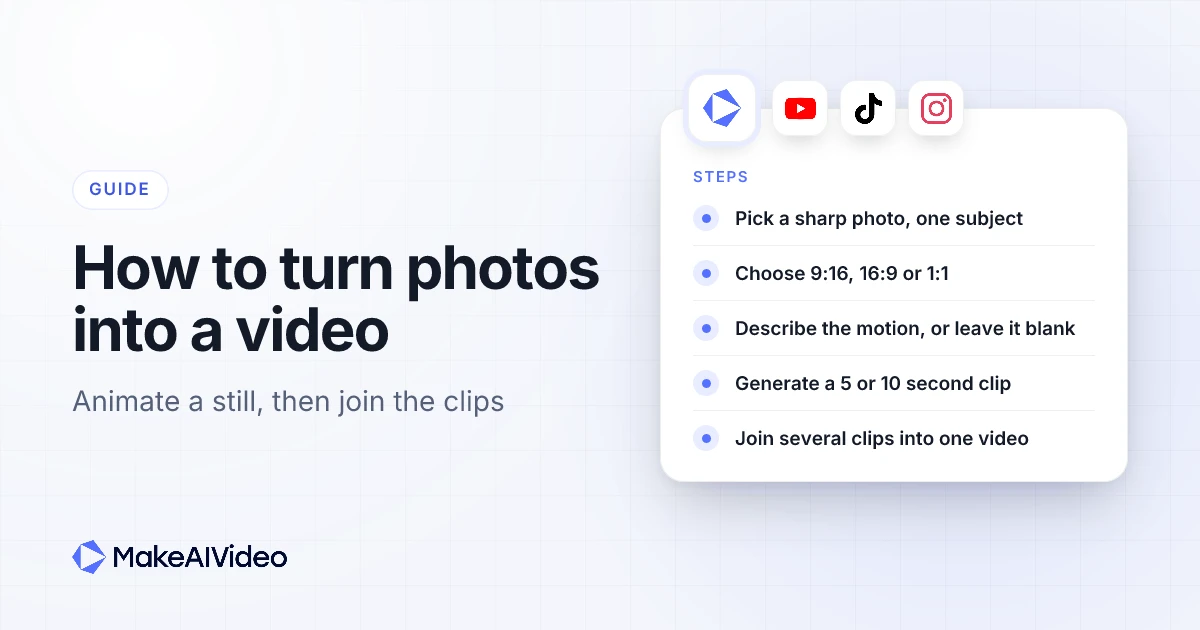
Here is how to turn photos into a video with AI: upload one photo to an image to video tool, describe the motion in a short line (or leave it blank), pick 5 or 10 seconds and an aspect ratio, and generate a clip where the scene itself moves. For a longer video from several photos, animate each photo as its own clip at the same aspect ratio, then join the clips in order with music or narration.
That is the whole method. The rest of this guide is about the choices that make the result look like footage rather than a filter: which photos to pick, what to type, how to handle old family photos and portraits that should speak, and when a plain slideshow is the better answer.
Written by Jamie Partridge, Founder of MakeAIVideo.
What does "turn photos into a video" actually mean?
People use the phrase for three quite different jobs, and the right tool depends on which one you have.
| What you want | What it looks like | Best route |
|---|---|---|
| One photo that moves | Hair in the wind, clouds drifting, a slow blink, a gentle camera push-in | AI image to video |
| A video made from several photos | A sequence of moving shots with music or a voiceover | Animate each photo, then join the clips |
| A photo slideshow | Stills that pan, zoom and fade into each other over music | A slideshow or memory-movie feature |
| A photo that speaks | The person in the photo says a line, with their mouth moving | Image to video with a spoken line, or a talking avatar |
A slideshow moves the camera over a still picture. AI animation, which is what the photo animation tool does, generates motion inside the picture, so water ripples and a person breathes. Most people searching for how to make a video from photos today want the second effect, because it looks like the moment was filmed. This guide covers that route in depth and the slideshow route briefly at the end.
How to turn a photo into a video with AI, step by step
Here is the exact flow in MakeAIVideo's image to video tool. The labels are the ones you see on screen.
Upload one photo. JPEG, PNG or WebP, at least 300 by 300 pixels and up to 10 MB. Use the sharpest copy you have, not a thumbnail saved from a chat app.
Pick the aspect ratio first. 9:16 for TikTok, Reels and Shorts, 16:9 for YouTube, 1:1 for feeds. The motion is framed around the ratio you choose, and each render makes one ratio.
Describe the motion, if you want to. The box under "How should it animate?" is optional. Leave it blank and the motion is inferred from the photo, or write one line such as "waves crashing, slow push-in".
Add a spoken line, if you want one. Type it under "What should they say?" and pick a voice. If the photo shows a face, the person says it with lip sync. If not, it plays as a voiceover. Leave it blank for a silent clip.
Pick 5 or 10 seconds. 5 seconds is labelled Fastest; 10 seconds is labelled Smoother motion and gives the movement room to land.
Generate and download. A watermark-free 1080p MP4 lands in your library. If the motion is not what you wanted, generate again from the same photo for a fresh take.
That is how to turn a photo into a video in about six clicks. You can see the result on a real still in this animated aurora example, where one photo of the northern lights over a mountain lake became a silent 10 second clip.
Try it on the photo you actually care about. Upload one still, leave the motion box blank for the first run, and see what the model reads from it. Start 7 day free trial →
Which photos turn into a video best?
The single biggest factor is the photo you start with. The model works out motion from one frame, so it has to guess at anything the frame does not show clearly.
| Photo | How it animates | What to do |
|---|---|---|
| Landscape with sky or water | Very reliably. Clouds, waves and light move cleanly | 10 seconds, 16:9, a slow drift |
| Portrait, one person, medium shot | Well, with small motion | A breath, a blink, hair in a breeze |
| Pet, head and shoulders visible | Well | A tail wag or an ear twitch, pet stays in frame |
| Product on a clean background | Well | A soft light shift and a gentle camera drift |
| Group photo | Everyone animates at once | One shared motion, faces of a similar size |
| Busy street, crowd, dense pattern | Often swims or warps | Crop tighter on one subject |
| Photo with text or a logo in it | Text tends to warp once it moves | Remove the text first, add it later as a caption |
| Very dark or heavily filtered photo | Too little real detail to work from | Use an unfiltered, well-lit copy |
Three rules cover most of it, and you can browse animated examples to see which subjects hold up. Keep one clear subject. Frame a medium shot rather than an extreme close-up, because tightly framed faces and fine textures can warp under motion. And start from the pose you want: the subject keeps the pose from the photo, so a person photographed sitting will not stand up and walk. If you need someone mid-stride, use a photo where they are already walking.
How to make a picture move: motion prompts that work
A motion prompt is not a scene description. The photo already is the scene, so the prompt only has to say what changes. The pattern that works is one subject motion, one gentle camera move and a pace. For the full library, see our 40 copy-paste image to video prompts grouped by photo type. Here are six that cover the common cases:
"Slow wind through her hair, soft camera push-in"
"Clouds drifting across the sky, gentle ripple on the water"
"Subtle breath and a slow blink"
"Slow tail wag and an ear twitch"
"Soft light shift, gentle camera drift"
"Rain falling softly, neon lights flickering"
And three that fight the photo:
- "Make it move." It names no motion, so it steers nothing. A blank box does the same job.
- "Wind in the trees on a stormy day with rain and lightning." Several motions compete and blur into each other.
- "She stands up and walks to the window." A pose change the photo cannot support. Expect bent limbs.
The motion box holds up to 500 characters, but you rarely need more than ten words. If the first result is close but not right, change one thing at a time: the motion, then the camera move, then the length.
How to make a video from photos: joining several photos into one video
An image to video clip comes from one photo, and the tool will not merge several photos into one clip. To make a longer video from a set of photos, build it clip by clip:
Choose 3 to 10 photos that tell a story in order. A trip from arrival to the last evening, a product from box to use, a life from childhood to now. Fewer, stronger photos beat a camera roll dump.
Pick one aspect ratio for all of them. Every clip must match, or the joined video jumps between frame shapes. 9:16 for phones, 16:9 for a TV or YouTube.
Animate each photo separately. Give each one a motion that suits it: a drift for landscapes, a breath for portraits. Use 5 seconds for quick cuts, 10 for moments you want to linger on.
Join the clips in order in an editing app. Any editor that accepts MP4 files works, including the basic editors built into many phones. Trim each clip, add a short crossfade where the mood calls for it, and lay music or narration underneath.
Export once at 1080p in the same ratio you rendered.
Ten photos at 10 seconds each gives you a video of just under two minutes, which is long enough for a memorial, a family anniversary or a property tour. The same method turns listing photos into a property walkthrough, and our guide to real estate video tools covers that use case in more depth.
If you do not need your own photos on screen, and the photos are only there to show a topic, there is a shorter path. Prompt to video writes a script from one line, narrates it and builds every scene for you, so you go straight to a finished, captioned video with no joining step.
How to make a photo talk
A talking photo is a still where the person says a line, with their mouth moving to the words. There are two ways to do it, depending on how much they need to say.
For one short line, use the spoken-line box in image to video. Type the line under "What should they say?", pick a voice, and generate. The person in the photo says it with lip sync. About 25 words fills a 10 second clip comfortably; you can check a draft with a speaking-time calculator.
For a full script, turn the photo into a presenter. In the AI talking avatar tool, add a reference photo in the character wizard and it generates portraits that keep that face. One photo is enough, and you can add up to five. Pick a portrait and a voice, save the character, then paste any script and the presenter reads it to camera with word-by-word captions. If you want that same face to appear in video after video, save it as a recurring character once and reuse it.
Start from a photo with a closed, relaxed mouth. An open mouth, a big grin or a hand near the face fights the lip sync. And only make a real person speak if you have their permission, a point the labelling section below comes back to.
How to turn old photos into a video
Old family photos are one of the most common reasons people look up how to turn photos into a video, and they need a little more care than a fresh phone photo.
Scan it well. Scan the print rather than photographing it at an angle. The Library of Congress's guide to the basics of scanning says "300 to 400 dpi is satisfactory for snapshot prints", with much higher settings for slides and negatives.
Restore it first. Remove dust, scratches, tears and fading in a restoration tool before you animate. MakeAIVideo's image to video animates the photo you give it; it does not restore it, so a faded copy becomes a faded clip.
Colourise it, if you want to. Optional. A colourised photo tends to read as a moment from life, a black-and-white one more as an effect. Both can be animated.
Use small motion over 10 seconds. A single breath, a slow blink, a little movement in the hair. Big head turns and broad smiles on an old portrait are where it starts to look uncanny. The goal is that the scene breathes while the face, the clothes and the room stay as they were.
For a memorial video, animate each restored photo this way and join them as described above, with the oldest photo first. Keep the music quiet and let a few clips run the full 10 seconds.
Bring one family photo to life first. Restore it, upload it to image to video, and type "a single breath, a slow blink". It is the quickest way to see whether the photo is a good candidate before you build a whole memorial. Start 7 day free trial →
Slideshow or AI animation: which should you use?
A slideshow is still a good answer for some jobs. The classic slideshow technique is the Ken Burns effect, which Wikipedia describes as "a type of panning and zooming effect used in film and video production" applied to still images. The picture itself never changes; the camera slides across it.
| Slideshow | AI animation | |
|---|---|---|
| What moves | The frame: pans, zooms and fades | The scene: water, light, hair, breath |
| Photos per video | Dozens, quickly | One per clip, then joined |
| Looks like | A presentation of photos | Footage of the moment |
| Speed | Instant, often automatic | Each clip is generated |
| Best for | A long event album, a party recap | A hero shot, a memorial, an ad, a social post |
Most phones can build a slideshow or memory movie with music from an album in their built-in photos app, and for fifty party photos that is the quickest way. Choose AI animation when you have a handful of photos that matter and you want them to feel alive. You can also mix the two: animate the three strongest photos and let the rest play as plain stills between them.
Length, aspect ratio and settings for each platform
Set the ratio before you generate, because re-cropping later can cut out the motion that mattered.
| Where it goes | Aspect ratio | Suggested clip length |
|---|---|---|
| TikTok, Instagram Reels, YouTube Shorts | 9:16 | 5 seconds per photo for quick cuts |
| YouTube, a TV, a memorial screen | 16:9 | 10 seconds per photo |
| Instagram or Facebook feed | 1:1 | 5 or 10 seconds |
| Product listing or ad | 1:1 or 9:16 | 5 seconds, looped |
Sprout Social's video specs guide lists TikTok in-feed video at "Resolution: 1080×1920" and "Aspect ratio: 9:16", which is what a 9:16 1080p render gives you. If you are building for one platform, the Reels format guide and the TikTok maker cover the specifics of each.
What does it cost to turn photos into a video?
MakeAIVideo prices clips in credits, and the app shows the exact cost before you press Generate. These are the image to video costs it quotes:
| Clip | About |
|---|---|
| 5 seconds, silent | 92 credits |
| 10 seconds, silent | 163 credits |
| 5 seconds, spoken line with lip sync | 108 credits |
| 10 seconds, spoken line with lip sync | 216 credits |
| 10 seconds, voiceover on a photo with no face | 183 credits |
A video made from five photos at 10 seconds each is five silent clips, about 815 credits before any narration. A practical habit: run each photo at 5 seconds first to check the motion, then spend the 10 second render on the ones that work.
Plans run from $9 to $49 a month, every plan starts with a 7-day free trial, and exports carry no watermark. Plan credits reset each month, and credits you buy as a top-up never expire. The credit tables for every tool list the rest.
Common problems when you turn photos into a video, and the fixes
- Faces smear or melt. Usually a small, compressed or filtered source. Upload a sharper copy, or a photo where the face is larger in the frame.
- Arms and hands bend wrongly. The prompt asks for too much, like a wave and a turn to camera. Keep to one motion idea, within the pose in the photo.
- The background swims. A busy scene with no clear subject. Crop tighter on the subject so there is less for the model to move.
- Not the motion you wanted. Name the motion, even a small one. "Subtle breath, slow blink" steers far better than a vague note, and the prompt library for each photo type has a starting line for most subjects.
- The joined video jumps between shapes. The clips were rendered at different ratios. Re-render the odd ones out in the same ratio.
- The likeness drifts. On a small, blurred or partly hidden face the model has to guess at features. Use a sharp, well-lit face.
Posting the video and labelling AI content
Once the video is joined and exported, you can publish it from MakeAIVideo to TikTok, Instagram and YouTube without downloading and re-uploading, now or on a schedule.
Animated photos of real people need a label on the big platforms. YouTube's disclosure policy says "We require creators to disclose AI-generated or altered content that seems realistic", and lists content that "Makes a real person appear to say or do something they didn't do" as something to disclose. TikTok's community guidelines say "we require creators to label AI-generated or significantly edited content that shows realistic-looking scenes or people." A photoreal animated portrait counts. When in doubt, turn the label on, and get permission before you animate or give a voice to anyone who is not you or your family.
If photo videos become a regular part of your posting, keep a steady rhythm rather than bursts. Buffer's study of more than 100,000 users found that "the highly consistent posters saw more than 5 times the engagement per post compared to those who posted sporadically." For the wider workflow beyond photos, from ideas and hooks to scripts and measuring results, see our guide to making AI videos.
Frequently asked questions
How do I turn photos into a video with AI?
Upload one photo to an image to video tool, describe the motion or leave it blank, pick 5 or 10 seconds and an aspect ratio, then generate. For several photos, animate each one and join the clips in an editing app.
Can I turn multiple photos into one video?
Yes, by animating each photo as its own clip at the same aspect ratio and joining them in order in any video editor. MakeAIVideo's image to video makes one clip per photo; it does not merge several photos into one clip.
How long is a video made from one photo?
In MakeAIVideo, 5 or 10 seconds per photo. 5 seconds renders fastest and suits quick cuts; 10 seconds gives the motion more room and suits landscapes and portraits you want to linger on.
Can I turn photos into a video for free?
MakeAIVideo starts with a 7-day free trial on any plan, so you can animate photos and download the clips before you pay. After the trial, plans start at $9 a month.
Can AI make the person in my photo talk?
Yes. Type a line under "What should they say?" and the person says it with an AI voice and lip sync. For a full script, turn the photo into a talking avatar presenter instead.
Can AI animate old or black-and-white photos?
Yes. Scan the print, restore damage first, and animate it with small motion such as a breath and a slow blink over 10 seconds. Big movements on old portraits tend to look uncanny.
Is a slideshow the same as turning photos into a video with AI?
No. A slideshow pans, zooms and fades between stills, so only the frame moves. AI animation generates motion inside the photo, such as moving water, light and a breath, so the scene looks filmed.
Written by Jamie Partridge
Founder at MakeAIVideo. Writing about AI video generation, scripting, scenes, and shipping content faster.