How does image to video work?
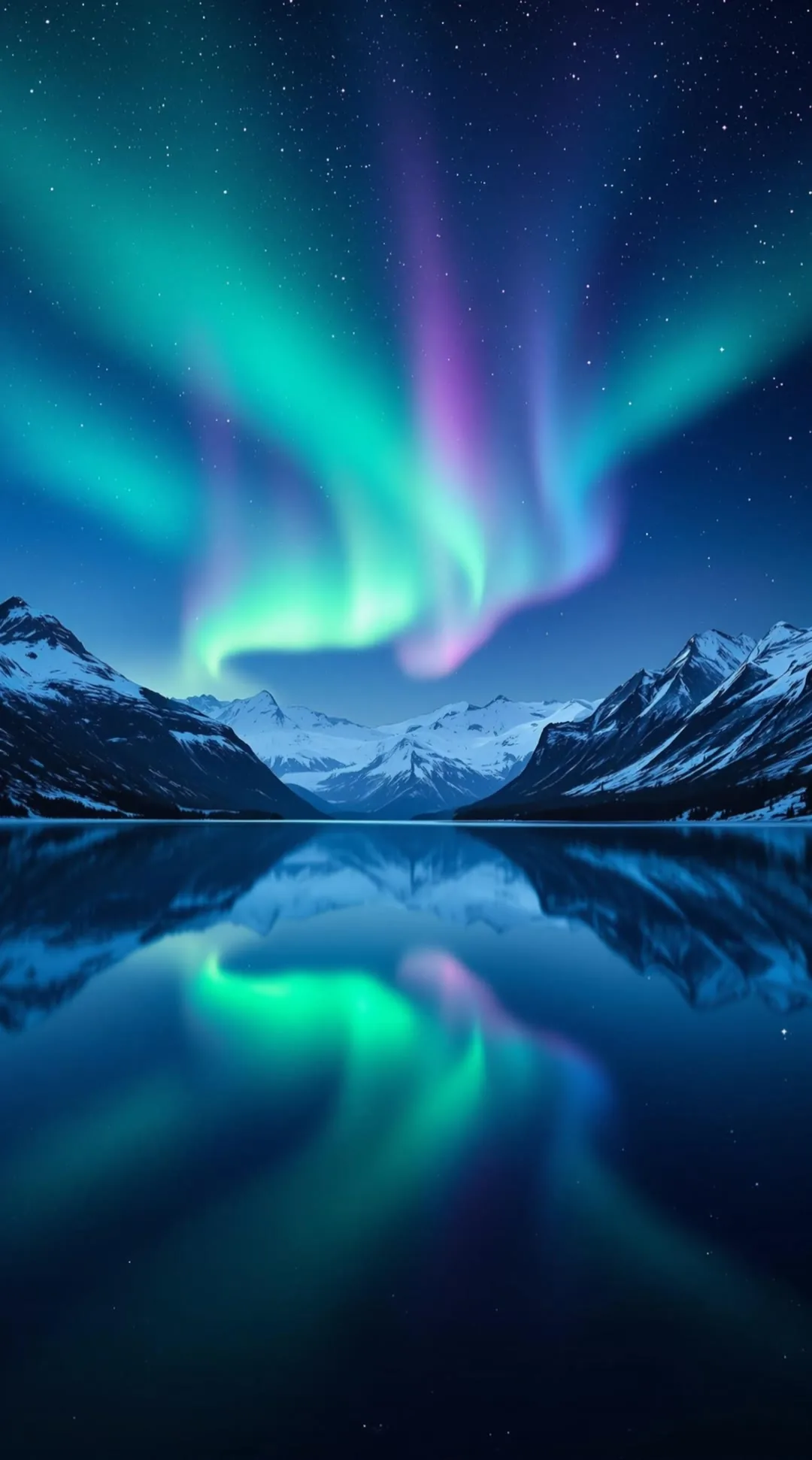
You upload a single image and MakeAIVideo animates it into a short photoreal video clip, adding natural motion while keeping the scene faithful to your original photo.
How do I animate a photo with AI?
Upload one photo on the Image to Video screen, optionally describe the motion under “How should it animate?”, choose 5 or 10 seconds and your aspect ratio, then generate. The finished 1080p clip lands in your library.
How do I bring an old photo to life?
Restore it first, fixing dust, scratches and fading, and colourise it if you want to. Then animate it with small motion over 10 seconds: a breath and a slow blink read as life, while big movements on an old portrait start to look uncanny.
How long are the clips?
Image to Video produces short clips of 5 or 10 seconds. For longer videos, use prompt to video or script to video, which build multi-scene videos.
What kind of images work best?
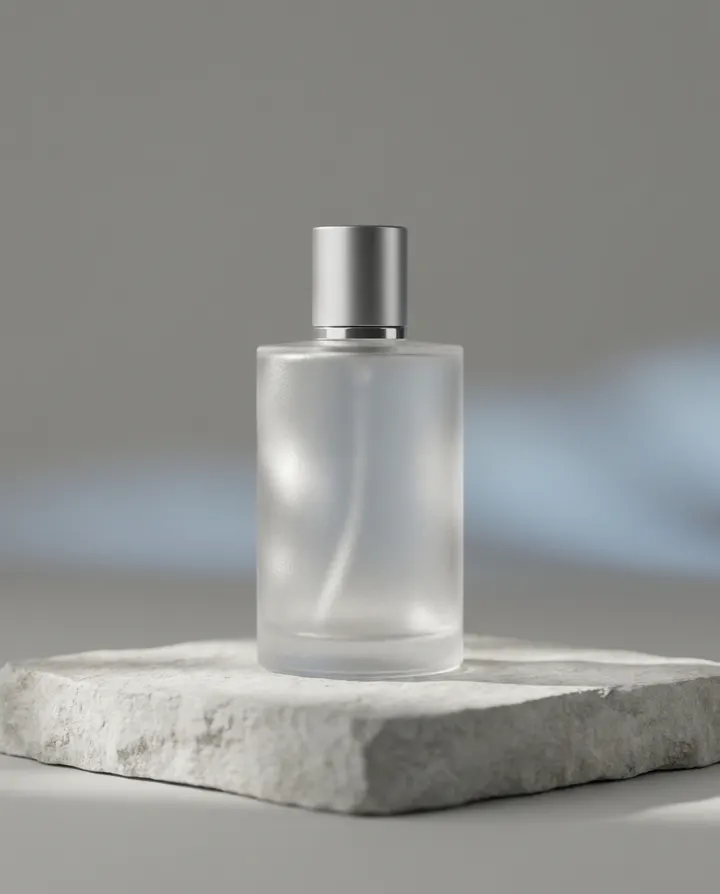
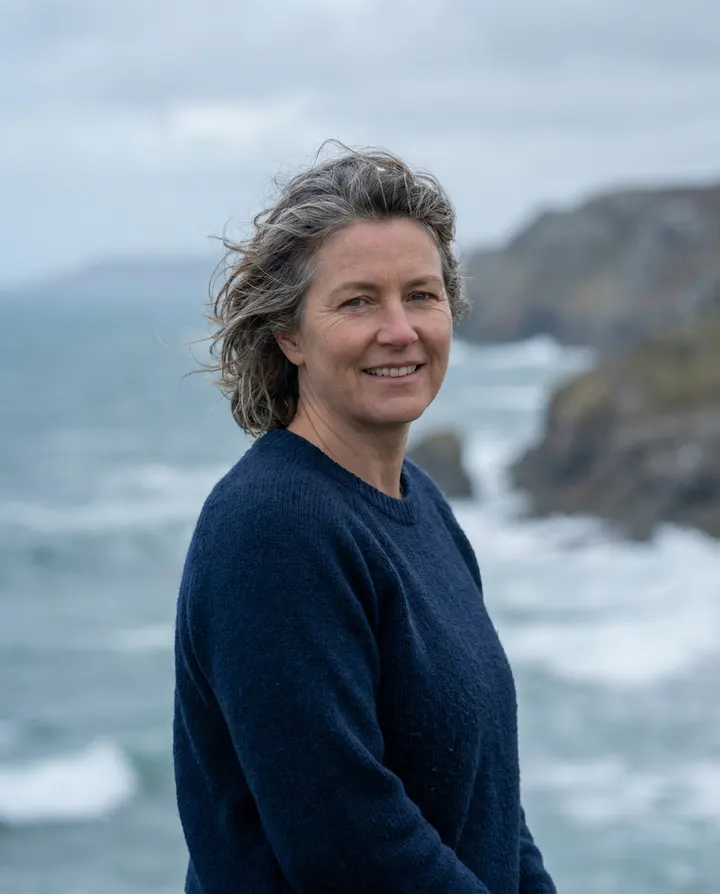
Photos and illustrations with a clear subject and some scope for motion (skies, water, light, hair, fabric) animate most naturally. Product shots, portraits, pets and landscapes work well.
Does it change my image?
It animates your existing image rather than generating a new scene, so faces, clothes and surroundings stay close to what you uploaded. Likeness holds up best on a sharp, well-lit face; on a small, blurred or partly hidden face the model has to guess at features, and it can drift.
How much does an image to video clip cost?
A silent 5 second clip is about 92 credits and a 10 second clip about 163. A spoken line with lip sync costs about 22 credits a second, so a 10 second clip is about 216. A 10 second voiceover on a photo with no face is about 183 credits. The app shows the exact cost before you generate.
How much does it cost?
Plans start at $9 a month for 600 credits, and every plan starts with a 7-day free trial. Solo is $19 a month for 1,100 credits. A silent 5 second clip is about 92 credits and a 10 second clip about 163. Plan credits reset monthly. Run out? Add credits any time, from $5; credits you buy never expire and stack on top. See MakeAIVideo plans and pricing.
Can I try image to video before paying?
Yes. Every plan starts with a 7-day free trial with 350 credits, full quality and no watermark, so you can try both clip lengths. A card is required to start the trial, and the plan you chose starts when it ends unless you cancel first.
What file types and sizes can I upload?
JPEG, PNG or WebP, at least 300 by 300 pixels and up to 10 MB. A higher-resolution still animates more naturally than a small thumbnail.
What aspect ratios are supported?
9:16 vertical (TikTok, Instagram Reels, YouTube Shorts), 16:9 landscape (YouTube), and 1:1 square (Instagram feed, Facebook). Pick the ratio before generating.
How is image to video different from a Ken Burns pan or a slideshow?
A Ken Burns effect pans and zooms a camera over a still, and a slideshow moves from one still to the next. Image to video generates motion inside the frame (water, light, fabric, hair, a breath or a blink), so the scene itself comes alive instead of sliding around.
What should I write in the motion prompt?
One motion idea: what moves, and how. “Slow wind through her hair, soft camera push-in” works; “make it move” is too vague, and a list of five motions blurs together. The note is optional and holds up to 500 characters, so you can also leave it blank and let the motion be inferred from the photo.
Can I use the clips commercially?
Yes. Videos you generate are yours to use commercially, for ads, product pages, social posts, and client work. Read the terms of service.
What happens when I run out of credits?
Nothing is lost: your account and finished videos stay exactly as they are. Plan credits reset on your next billing date. Run out sooner? Add credits any time, from $5.
How natural will the motion look?
Motion quality scales with the source image. Photoreal stills with clear subjects (a portrait outdoors, a landscape, a product in good light) animate cleanly. Highly stylised illustrations, busy compositions, or low-resolution thumbnails can produce odd warping. The tips above cover what to look for in a source that animates well.
Can I edit the clip after generating?
Yes. Open the finished clip in the built-in editor, or generate again from the same image for a fresh take on the motion. Each new generation costs the same as the first, and the result lands back in your library alongside the original.
How long does it take to render an image-to-video clip?
5 second clips render fastest, which is why the app labels them Fastest; 10 second clips take longer. The finished MP4 lands in your library when it is ready.
Can I generate several variations from the same image?
Yes. Re-generating from the same source produces a fresh motion pattern each time. It's the simplest way to get the result you want when the first variation isn't quite right; each retry costs the same as a new generation.
Do I need to write a prompt with my image?
No. The motion prompt is optional: leave it blank and it reads the scene from your photo and infers the motion that fits, or describe the movement to steer it. If you'd rather build a video from a text idea, use prompt to video instead.
What is the best AI photo to video tool?
It depends on the job. For a few seconds of real motion from one still, use an image to video tool like this one. For a portrait that speaks, you need a voice and lip sync as well as motion. For a layered 3D look, a dedicated depth tool fits better, and for a narrated multi-scene video, a prompt or script based generator. Then compare clip length, resolution, aspect ratios, watermark, motion control and commercial rights, and test each tool on the photo you actually need to animate.
Is image to video the same as photo to video?
Yes. Both mean turning one still into a short clip with motion inside the frame. Image to video is the usual name for the feature; photo to video, animate a photo and bring a photo to life are how many people search for it.
Why does image to video sometimes warp the subject?
The model works out motion from a single frame, so it has to guess at anything the photo does not show clearly. Crowds, intricate patterns, reflections, text and low-resolution sources are where those guesses tend to go wrong. A sharper source with one clear subject helps, and generating again gives you a fresh take on the motion.
Can the person in my image walk, dance or change pose?
Not reliably. Image to video keeps the subject in the pose from your photo and adds motion within it: a breeze, a camera drift, a change of expression. If you want someone mid-stride, upload a photo where they are already walking.
Can I animate a photo with more than one person in it?
Yes, and everyone in frame is animated at once. It works best when the faces are a similar size and similarly lit. Give one shared motion idea, like a gentle sway, rather than directions for each person.
Can I make a photo talk?
Yes. Type a line under “What should they say?” before you generate. If the image shows a face, the person says it with an AI voice and lip sync; a 10 second clip with lip sync is about 216 credits. On an image without a face, such as a product or a landscape, the line plays as a voiceover. For a presenter reading a full script, use an AI talking avatar.
Can I make one video from several photos?
Image to Video animates one photo per clip. For a memorial or a montage, animate each photo separately at the same aspect ratio, then join the clips in any video editor. For a narrated video built from a written idea, use prompt to video.
Is it okay to animate a photo of someone else?
Animating your own family's photos for your family is one thing. Animating a stranger or a public figure, or making anyone appear to say something, and posting it as if it were real footage is another. Get permission for any likeness that is not yours, and say that the clip was made with AI.
Can I render the same image at multiple aspect ratios?
Yes. The same source can render in 9:16, 16:9, and 1:1. Each crop is generated independently so the motion fits the chosen frame; re-render in another ratio if you need multiple sizes for different platforms.