AI Anime Video Generator
Type a prompt or upload a reference image, then pick the Anime visual style. MakeAIVideo renders every scene in coherent anime style with narration, captions, and music built into the same pipeline, then exports a watermark-free 1080p MP4.
Try free for 7 days·$0 due today · Cancel anytime

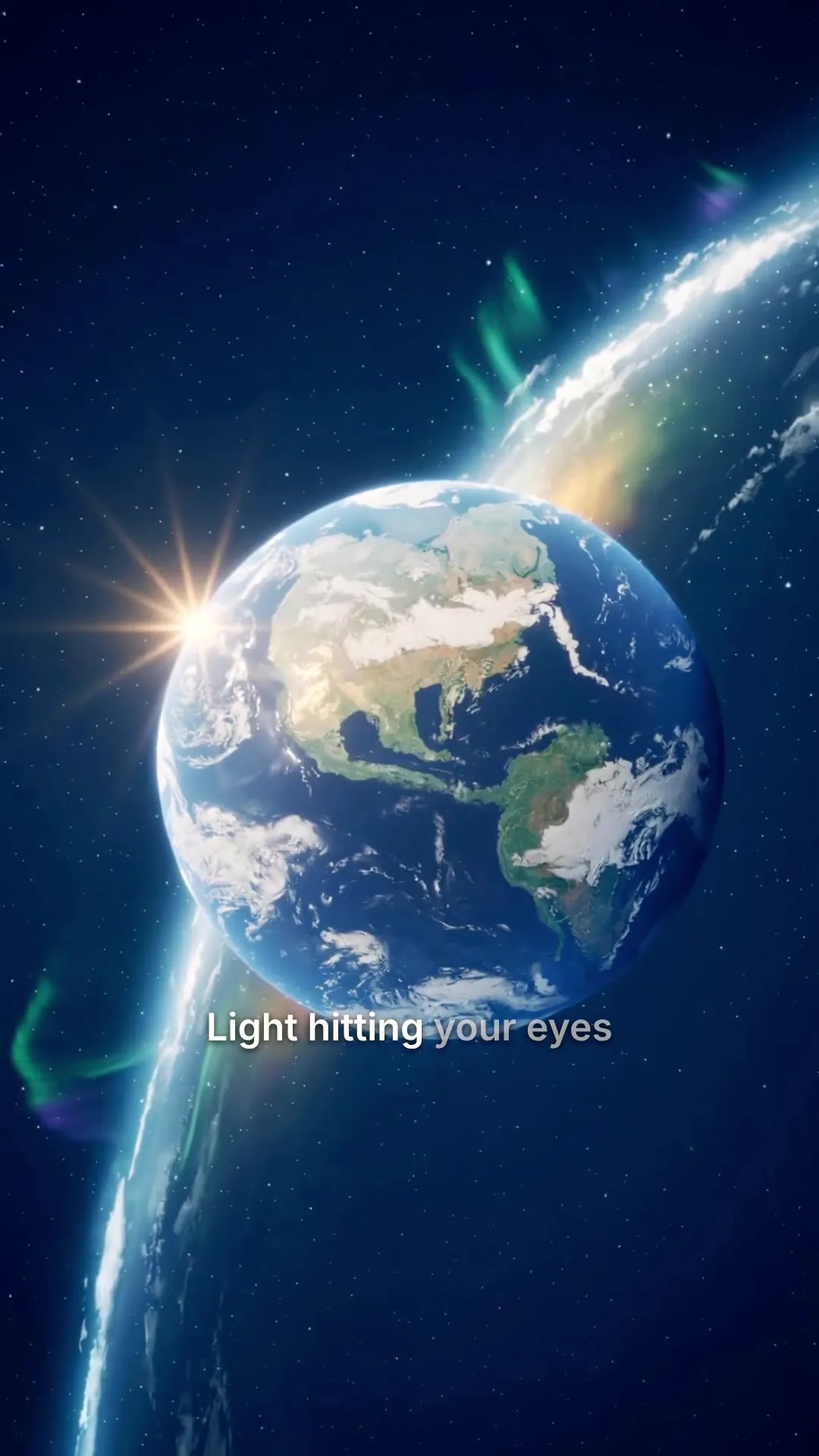
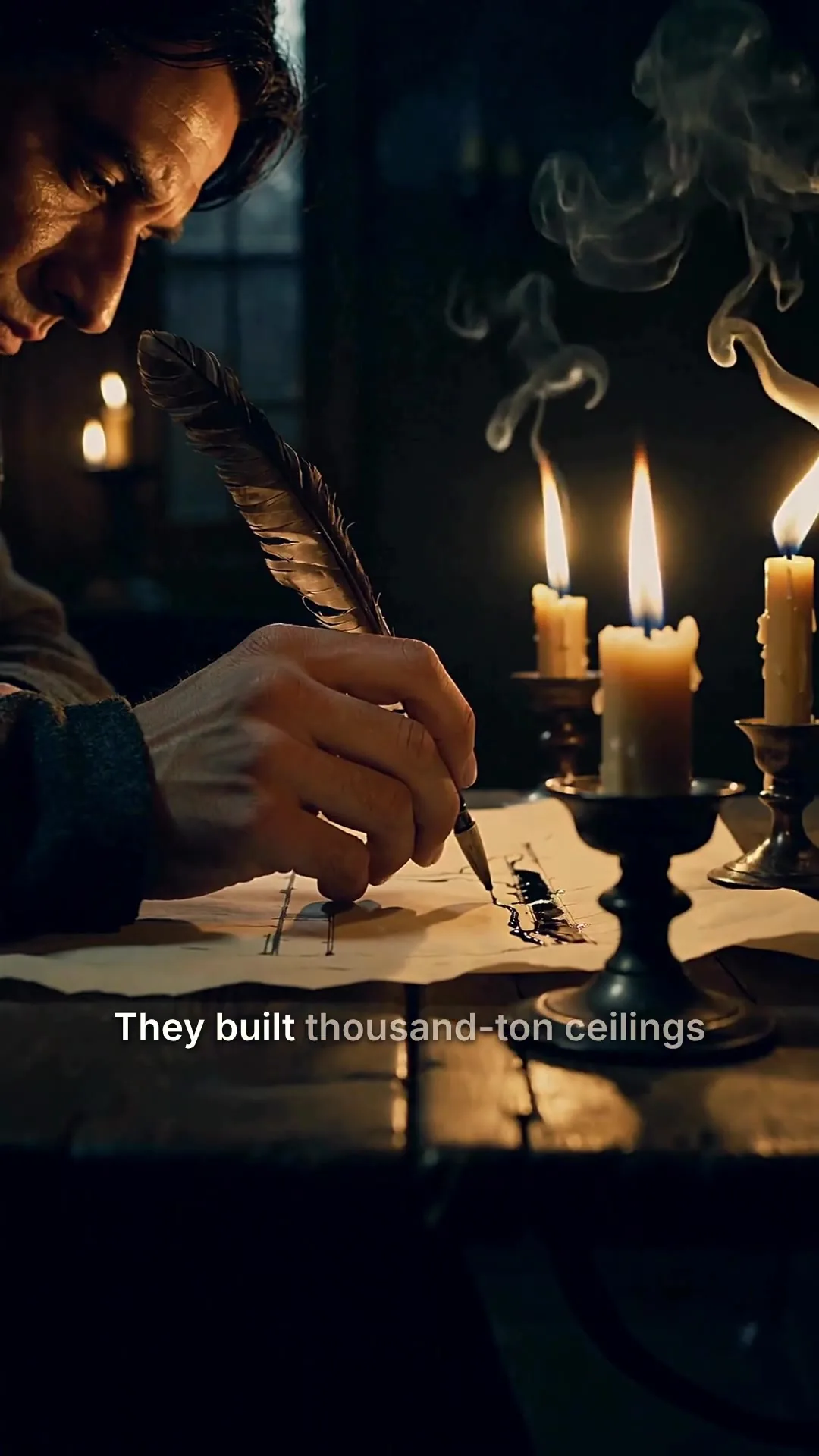
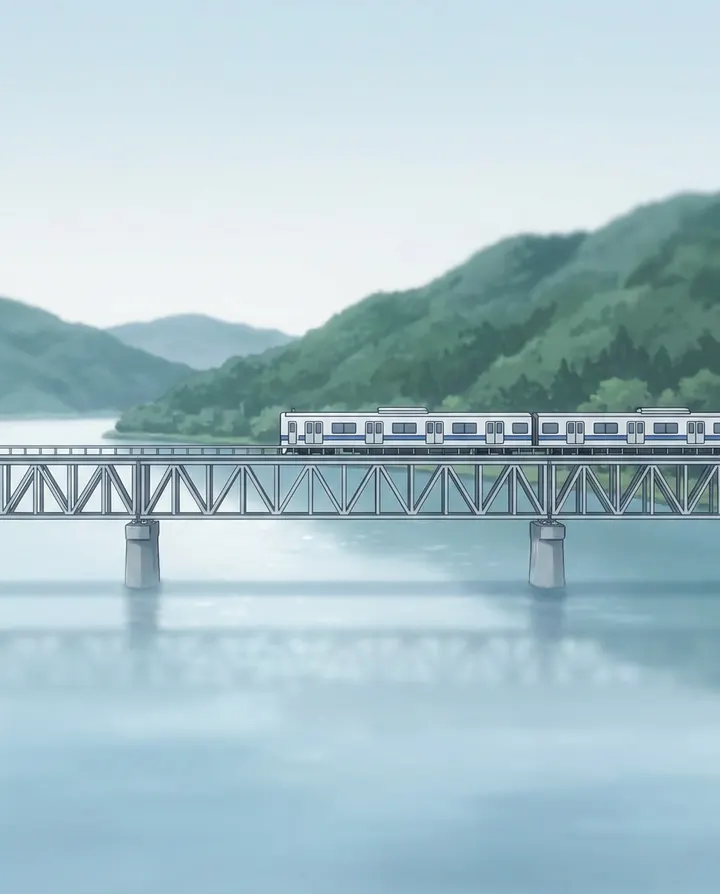
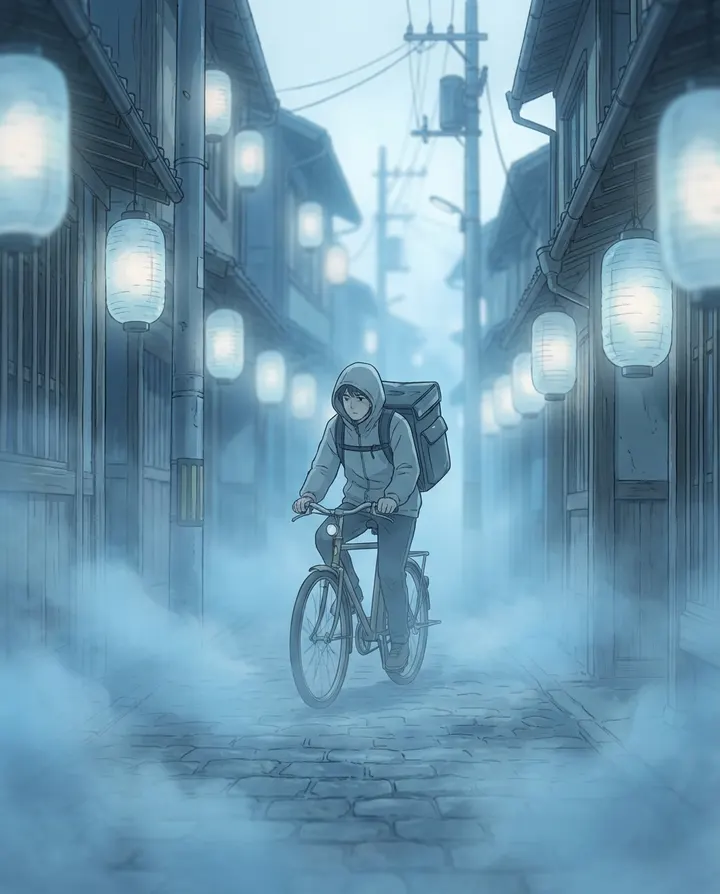
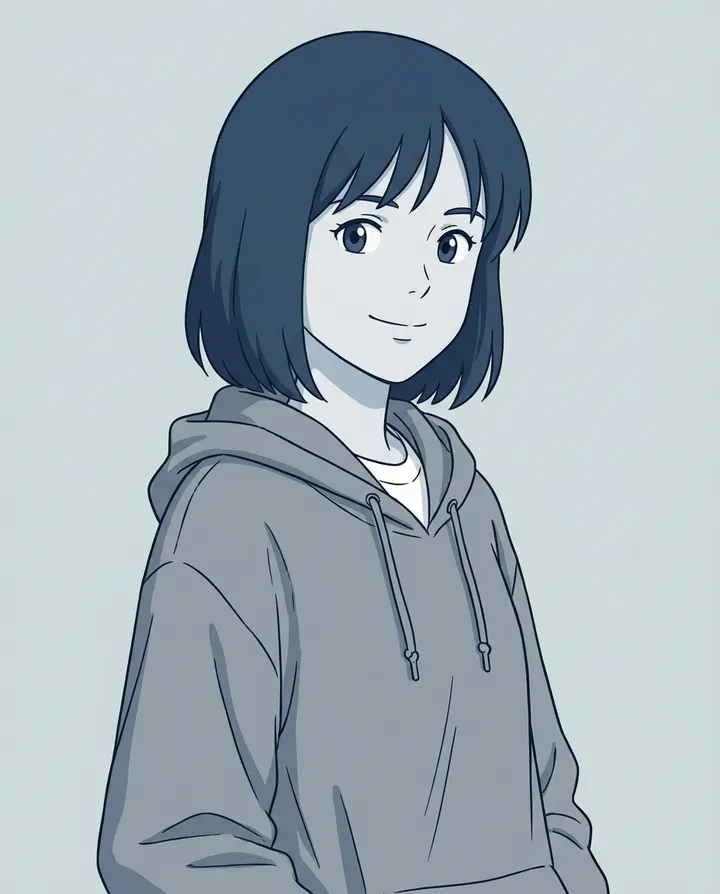
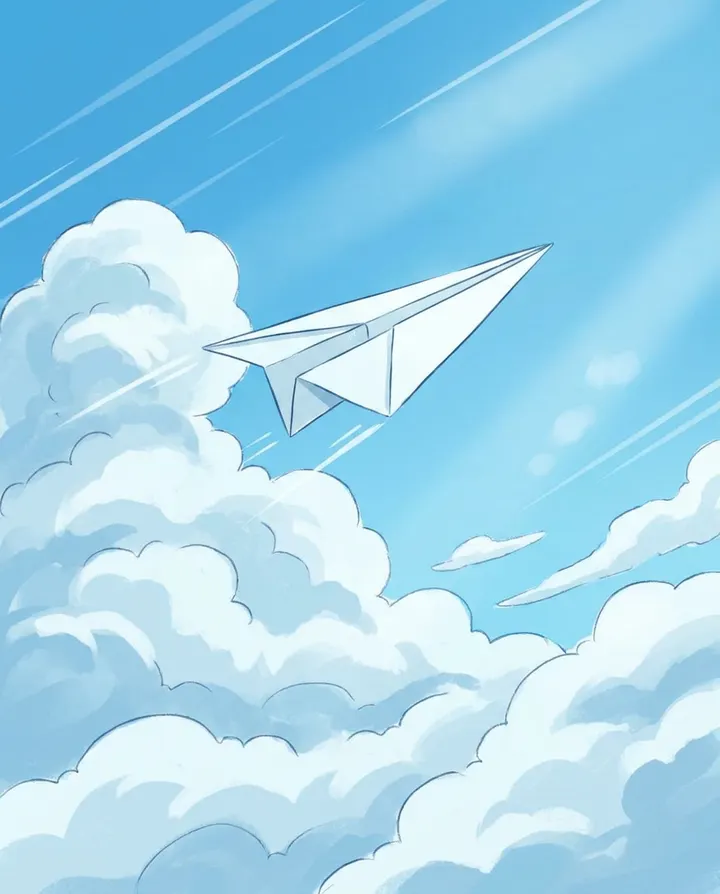
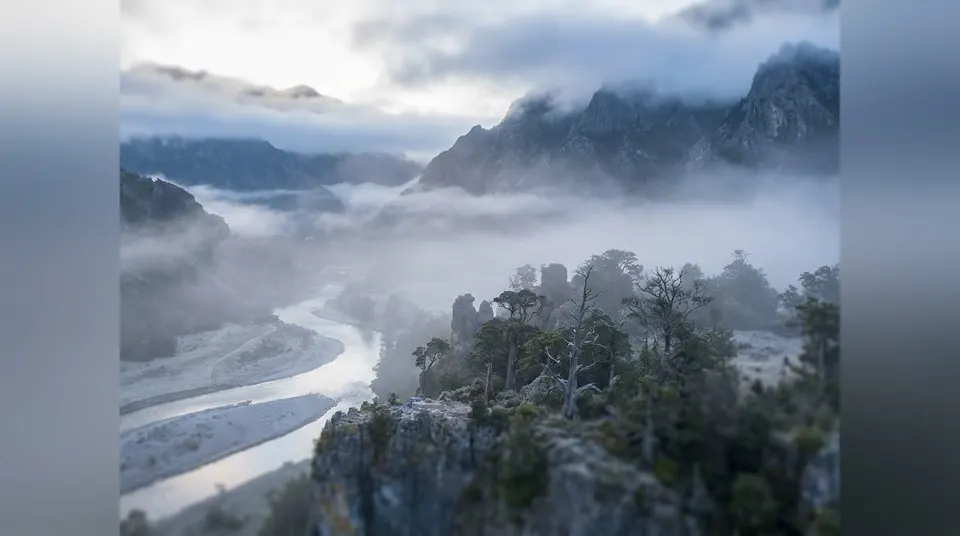
A real render from the same pipeline that ships the Anime preset.
Anime style, held across every scene
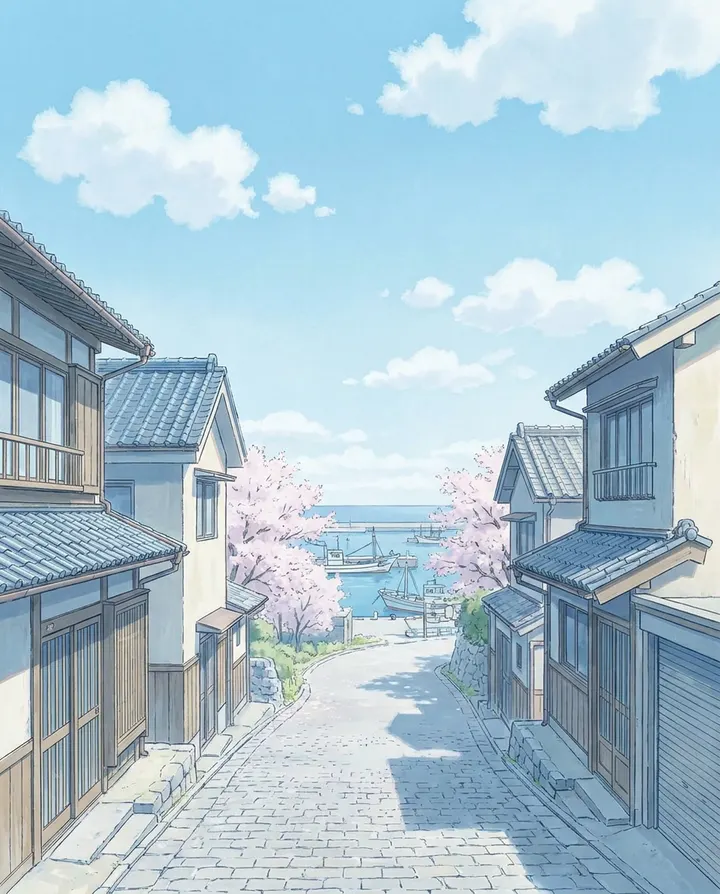
Coherent anime style, not a filter on stock footage
Most tools that claim anime output run a style filter over stock clips, so the look shifts between beats. MakeAIVideo picks the Anime visual preset before the render is planned, so every scene is drawn in the same aesthetic from the first shot to the last. Prompt-driven or image-driven, the anime look is built into the pipeline, not painted on afterwards.
One preset, whole render
The Anime style locks in at the render level so every scene inherits the look, not just the first one.
Prompt or image input
Type a scene or upload a reference. Both routes land the Anime preset without extra tooling.
Characters that hold
Prompt guardrails plus the character card on Creator and Studio keep the cast recognisable across scenes.
How it works
From prompt or image to anime video in four steps
- 01
Pick the Anime visual preset
Anime sits alongside Cinematic, Claymation, and 11 other visual styles in the preset picker. Selecting it up front tells the pipeline to render every scene in coherent anime style rather than mixing looks between beats. Switch presets later if you want a different aesthetic; the setting travels with the whole render, not one scene.
- 02
Write a prompt or upload a reference image
Prompt mode turns a one-line scene description into an anime sequence: the pipeline drafts the beats, casts the shots, and renders each one in anime style. Image mode takes a still (a character sheet, a keyframe, a reference photo) and animates it in anime motion so the source aesthetic is preserved end to end.
- 03
The AI builds scenes, voice, captions, music
Every beat becomes an anime scene, with a natural AI narrator reading the script and word-by-word captions timed to the audio. Background music auto-ducks under the voice. If you don't want narration or music, turn either off; the anime visuals still render clean without them.
- 04
Render and download
A watermark-free 1080p MP4 lands in your library, ready to post to YouTube, TikTok, Reels, or a client folder. Open the editor to re-roll a single scene, restyle the captions, or swap the voice if a beat lands off; the anime preset is preserved across regenerations.
Render an anime video, right in your browser
Set the prompt, pick the Anime preset, pick your aspect ratio, hit generate. The finished anime MP4 lands in your library.

All included
Everything you get in an anime render
Anime preset, prompt and image input, voice, captions, music, and 1080p export bundled into every render.
Anime visual preset
One of 14 style presets, applied coherently across every scene in the render.
Prompt-to-anime mode
Type a scene description; the pipeline drafts the beats and renders each one in anime style.
Image-to-anime mode
Upload a still or character sheet; get anime-style motion that respects the source aesthetic.
Character consistency
Prompt guardrails keep characters recognisable across scenes; add a character card on Creator or Studio.
Every aspect ratio
16:9 widescreen, 9:16 vertical for Shorts and Reels, 1:1 square, and 4:5.
Voice, captions, music
A narrator reads the script, captions time to the voice, music ducks underneath. All in one pass.
Word-by-word captions
Eight caption presets, timed to the voiceover and burned into the export.
Coherent style
The Anime preset holds across every scene, so beats don't switch aesthetic mid-render.
Watermark-free 1080p
Clean anime MP4 exports, yours to post or license.
What you can ship in anime style
Finished anime videos, straight from a prompt or a reference image.
Faceless anime YouTube channels
Build a faceless YouTube or Shorts channel around an anime aesthetic without commissioning frame-by-frame animation. One prompt per video, coherent anime style across every scene, watermark-free 1080p export ready for the upload queue.
Fan-fiction visualisation
Turn a written scene, a fanfic chapter, or an original character concept into an anime-style short. Paste the text into script mode; the pipeline narrates the words exactly and renders each beat in anime style.
Anime-mood short films
Ship a 30 to 90 second anime-style short for TikTok, Reels, or the Shorts shelf. Vertical 9:16, word-by-word captions, background music ducked under narration; the whole thing renders in one pass.
Storyboard-to-anime pitch reels
Take a written pitch, a rough storyboard, or a set of key visuals into an anime-style animatic. Use the reel to sell an original series, a pitch deck, or a client brief without hiring a full animation team for the pilot.
Reference-image animation
Upload a single character sheet or keyframe and animate it into a short anime clip. The pipeline preserves the source aesthetic through the render, so the anime look you drew or generated upstream stays intact.
Anime openers, intros, and outros
Generate a 5 to 15 second anime-style opener or bumper for a stream, podcast, or long-form video. One prompt in, one anime clip out; drop it in front of your existing footage without a second tool.
Best practices
Tips for tighter anime renders
- Pick the preset before you generate
- The Anime preset changes how the whole render is planned, not just how each frame is filtered. Selecting it after generation means paying for a fresh render; setting it up front is free.
- Describe the anime aesthetic in your prompt
- Anime is a family of styles, not one look. Adding words like 'shonen action', 'shojo pastel', '90s cel-shaded', or 'moody seinen' guides the model without needing a new preset. The more specific your reference, the tighter the render.
- Give characters a description worth repeating
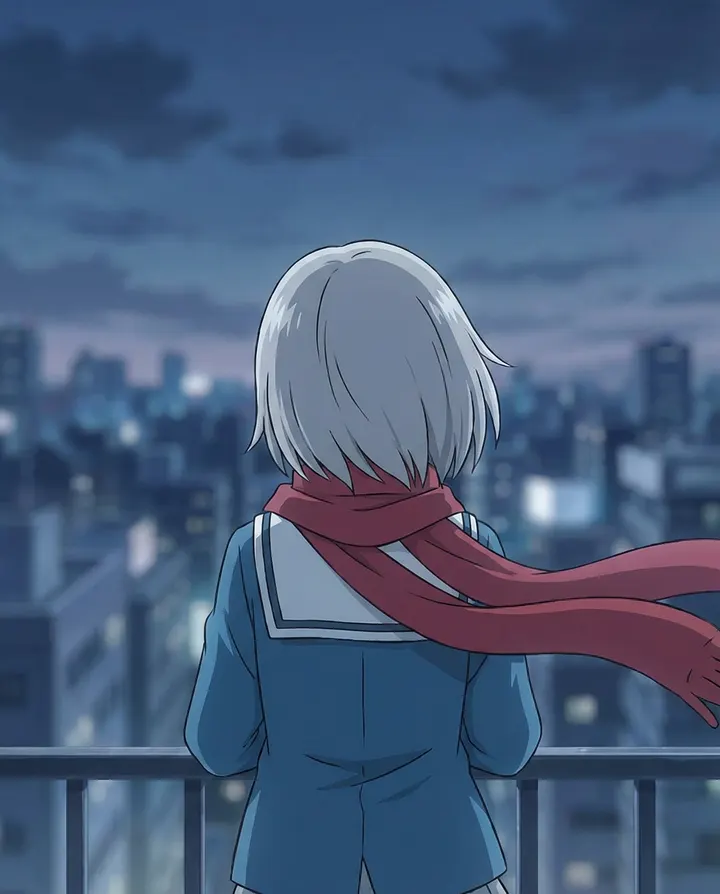
- Consistency across scenes depends on the model getting the same details each time. 'A tall boy with silver hair, blue jacket, red scarf' repeated in each beat helps far more than one generic mention at the top of the prompt.
- Use the character card on Creator or Studio
- The character card locks a description in one place and applies it across every scene automatically, so you don't restate it per beat. Available on Creator and Studio tiers; useful for series-style projects.
- Set the aspect ratio for where it's going
- 9:16 vertical for Shorts, Reels, and TikTok; 16:9 for the main YouTube page and TVs; 1:1 for Instagram feed. Anime framing (close-ups, low angles, action panels) reads very differently across ratios, so pick the crop first.
- Re-roll one scene, not the whole render
- If a single beat lands off, open the editor and regenerate just that scene. The Anime preset is preserved on the re-roll so the style stays coherent across the sequence.
From the blog
Industry references
External standards, policy documents, and reference material this page draws on.
- Runway — industry benchmark for prompt- and image-to-video
- Luma Dream Machine — cinematic image-to-video model
- Kling — anime-strong Kuaishou video model
- Stability AI — open-source image and video diffusion research
- TechCrunch AI — generative-video category coverage
- Wikipedia — background on anime as a visual style
Frequently asked questions
How do I get anime style?
Open the visual style picker before generating and pick the Anime preset. It sits alongside Cinematic, Claymation, and 11 other looks. Once selected, the whole render is planned in anime style: every scene, not just the first one.
Can I reference a specific anime aesthetic?
Yes. Describe it in the prompt: 'shonen action', 'shojo pastel', '90s cel-shaded', 'moody seinen', or a scene reference from a series you have in mind. The model interprets these cues on top of the Anime preset, so the style is coherent but leaning in the direction you asked for.
How do characters stay consistent across scenes?
Two ways. First, prompt guardrails: repeat a tight character description ('tall boy with silver hair, blue jacket, red scarf') in each scene so the model has the same details to work from. Second, the character card on Creator and Studio tiers locks the description once and applies it to every scene automatically.
Can I animate a reference image in anime style?
Yes. Upload a character sheet, a keyframe, or an anime-style still on the image to video screen; MakeAIVideo animates it while preserving the source aesthetic so the anime look you drew or generated upstream carries through the motion.
What aspect ratios can I export?
16:9 widescreen for YouTube and TVs, 9:16 vertical for TikTok, Reels, and the Shorts shelf, 1:1 square for Instagram feed, and 4:5. Pick the ratio before generating so the anime framing (close-ups, low angles, action shots) is composed for the crop you'll actually post in.
Is there a watermark on the anime export?
No. Every anime render exported on a paid plan is a watermark-free 1080p MP4, yours to post or license anywhere. Watermark removal is not gated behind a higher tier.
Which plan is best for continuous anime work?
The Creator tier at $59 per month suits ongoing anime series work: 3,500 credits per month and up to 30-minute clips per render, with the character card feature for cross-scene consistency. Studio at $149 per month is the right fit at a team or channel scale. See pricing.
Can I add narration, captions, and music to the anime video?
Yes. The full pipeline is on by default: a natural AI narrator reads the script, word-by-word captions time to the voice, background music ducks under the narration. Turn any of them off if you want silent anime motion; the visuals still render clean.
Can I commercialise the anime output?
Yes. Anime videos rendered on a paid plan are yours to monetise on YouTube, TikTok, Reels, and to use in client work. See the full terms.
What happens after my 7-day trial?
Your plan starts billing at its monthly rate at the end of the trial. Cancel any time during the trial for no charge and you won't be billed.
One preset in. An anime video out.
Try free for 7 days. $0 due today. Cancel anytime in the trial window for no charge.