
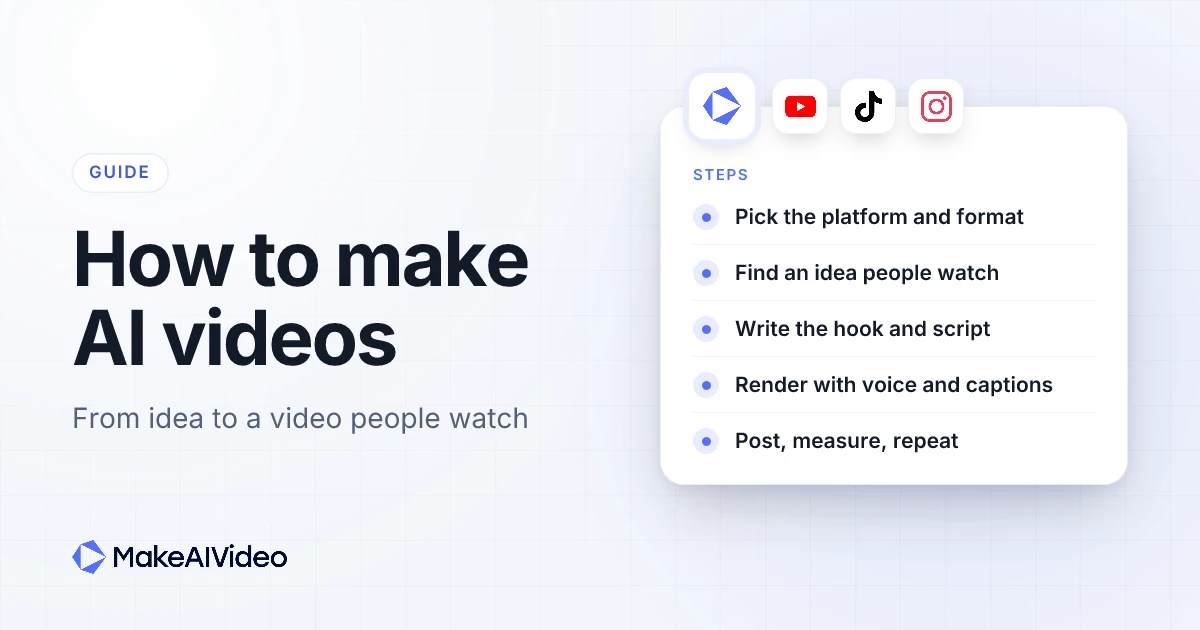
To make AI videos, write one specific idea and a script with a strong opening line, then let an AI video tool turn it into a narrated video with scenes, captions and music, and post it in the right aspect ratio for the platform. The tool is the easy part. Views come from the steps around it: picking a platform first, choosing an idea people already watch, opening with a hook, keeping the script to length, and checking the numbers after you post. This guide walks through how to make AI videos end to end, the way MakeAIVideo does each step in one pass, with real credit costs and real examples.
Written by Jamie Partridge, Founder of MakeAIVideo.
How do people make AI videos?
There are three ways people make AI videos today, and they differ in how many tools you touch between the idea and the finished file.
1. Stitching separate tools together. You write the script in a chatbot, record the voice in a text-to-speech app, generate clips one at a time, find music somewhere else, then cut it all together and add captions in an editor. It gives you total control, and it is how most "how to make an AI video" tutorials still teach it. It is also slow: every hand-off is a download, an upload and a chance for the voice and pictures to drift apart.
2. Clip generators on their own. You type a prompt and get a few seconds of moving footage. The latest AI video models produce striking shots, but a single clip is not a video. There is no script, no narration, no captions and no structure, so you are back to stitching if you want something people will watch to the end.
3. An end-to-end pipeline. You give one tool a prompt, a script, a photo or a clip, and it returns a finished video: script, voiceover, scenes, word-by-word captions and music, rendered as a 1080p MP4. This is how MakeAIVideo's prompt to video works. Every line of the script becomes a scene, the captions are timed to the voiceover, and any music you pick ducks under the narration. Exports carry no watermark on any plan.
With the third approach, the bottleneck stops being production and becomes ideas. The rest of this guide covers the steps that decide whether anyone watches.
Step 1: Pick the platform and format before you make an AI video
Decide where the video will live before you write a word. The platform sets the aspect ratio, the realistic length and the kind of opening that works.
- TikTok, YouTube Shorts and Instagram Reels: vertical 9:16, usually under a minute, sound often off, the first seconds decide everything.
- YouTube long-form: landscape 16:9, several minutes, a title and thumbnail that earn the click, and a script that holds attention past the intro.
- Feeds and ads: 1:1 square or 9:16, short, with the product or point on screen early.
Pick one format and stick with it for your first batch. MakeAIVideo makes one aspect ratio per render, so choose 9:16, 16:9 or 1:1 up front and the scenes are framed for it. You can re-export at another ratio from the editor later, but a video planned for its platform looks better than one cropped after the fact. Building a channel rather than posting one-offs? See running a channel with no face on camera.
Step 2: Find AI video ideas people already watch
The idea matters more than the visuals. A beautiful video nobody cares about gets no views; a plain one that answers a real question can keep getting found for months.
Good AI video ideas share three things:
- A specific topic. "Why airplane windows are round" beats "a video about planes".
- A clear promise. The viewer knows in one line what they will get.
- Proof of demand. Similar videos already do well in your niche, or people search for it.
To find them, look at the most-viewed videos in your niche, the questions in their comments, and the suggestions that appear as you type a topic into the platform's search bar. If you are stuck, the video idea generator turns a niche into a list of specific angles, and the niche finder for faceless channels shortlists whole niches by production style.
Write down 20 ideas before you make the first video. If you cannot list 20, pick a wider niche.
Step 3: Write a hook for the first seconds of your AI video
The hook is the first line the viewer hears and sees. On short-form platforms it decides whether they stay or swipe, so write it as its own piece, not the start of the script.
Hooks that work tend to do one of these:
- Ask the question the video answers. "Why does honey never go off?"
- Call out a mistake. "You are probably storing your coffee wrong."
- Promise a result. "Three edits that make any photo look professional."
- Open mid-story. "The ship was already sinking when the radio went quiet."
Skip greetings, channel intros and "in this video I will". This hook tool drafts several openings for a topic so you can pick the strongest, and the same line works as the on-screen caption for the first frame.
Write the hook last, read it first. Once the script is done, go back and ask which line is the most interesting, then move it to the top. MakeAIVideo's prompt to video writes a hook, body and close for you, and you can rewrite the opening line before you generate. Start 7 day free trial →
Step 4: Write the AI video script to length
Length is set by the words, not the visuals. In the presenter tool the script box estimates the runtime as you type, at about 150 words a minute, so:
| Target length | Script length |
|---|---|
| 15 seconds | about 40 words |
| 30 seconds | about 75 words |
| 60 seconds | about 150 words |
| 3 minutes | about 450 words |
Run a draft through a speaking-time check before you render, because an overlong script is how a short ends up over a minute.
A simple structure works for almost every short: a hook (the first line), a body that pays off the hook with two or three points, and a close that tells the viewer what to do next or leaves them with one memorable line. Keep sentences to around 15 to 20 words, because short sentences give the narrator natural pauses and each one can become its own scene. Write one idea per sentence, and where it matters, say what should be on screen: "a tight shot of a smartphone" steers the scene better than "a phone".
For templates at each length, read our full guide to writing scripts for AI video. Or skip the writing: type one line into prompt to video and MakeAIVideo writes a paced script for you, or paste your own into script to video and it is read word for word, never rewritten.
Step 5: Choose how to create the AI video
How to create AI videos depends on what you start from. MakeAIVideo has a mode for each starting point, and they all end in the same place: a watermark-free 1080p MP4 in your library.
Prompt to video: start from one line
Type a single sentence with the topic, the angle and the length, such as "a 60 second explainer about why honey crystallises". Prompt to video writes the script, picks a narrator, builds a scene for every line and times the captions. Scenes are real stock footage by default, or AI-generated in a visual style you pick, such as cinematic, anime or claymation. Use it when you have an idea but no script.
Script to video: start from your own words
Paste a finished script and the script mode narrates it exactly as written, with one narrator voice throughout. Line breaks mark scene breaks if you want control over pacing. Use it for explainers, blog posts and anything where the wording is approved.
Image to video: start from a photo
Upload one photo and the photo animation tool turns it into a 5 or 10 second clip with real motion inside the frame, optionally with a spoken line that the person in the photo says with lip sync. Use it for product shots, portraits, landscapes and old photos. There are 40 copy-paste motion prompts to start from.
Faceless videos over stock footage
For a faceless channel, narration over real stock footage is the default and the cheapest way to make longer videos. An AI narrator reads the script and each line is matched to footage. It suits history, finance, science and how-to. Narration comes in any of 24 languages.
AI videos with a face: avatars, character swap and UGC
Some videos need a person on screen. MakeAIVideo makes one without a camera or an actor.
Talking avatar or AI presenter
Pick a presenter from the library, or make one from a photo, then paste the script. A talking presenter is lip-synced to the voiceover, with word-by-word captions. Talking-head videos work best at 30 to 90 seconds. For the same face in every video, build a recurring character once.
Character swap
Film a 3 to 60 second clip yourself, and character swap puts a different AI character in your place. The movement, the background and the original audio are kept, and only the person changes. It suits creators who want to perform but not show their face. Use footage you own or have rights to.
UGC-style ads
For paid social, an AI UGC video is an AI presenter delivering ad copy to camera in 9:16, the format that sits naturally in TikTok and Instagram feeds. Tight copy works best: a hook in the first three seconds, one product claim and a call to action.
Step 6: Voice, captions and music for AI generated videos
These three decide whether an AI generated video feels finished or feels like a draft.
Voice. Pick a narrator whose age and tone fit the topic and the presenter. A young face with an elderly voice breaks the illusion. MakeAIVideo has a curated library of natural AI narrators, and you can re-roll the voice in the editor.
Captions. Feeds are often watched muted, and captions are how those viewers follow along. The W3C's Web Accessibility Initiative notes that beyond Deaf and hard of hearing viewers, captions "are also used by people who process written information better than audio." MakeAIVideo burns word-by-word captions into the export, timed to the voiceover, in a choice of caption styles. Watch every render once muted: if the captions do not carry the point on their own, fix them before you post.
Music. Music should sit under the voice, never compete with it. Any background track you pick in MakeAIVideo ducks under the narration. For a talking head, quiet music or none usually beats a busy track.
After the first render, open the editor to fix anything that is off: regenerate a weak scene, swap the voice, or correct a caption word, without starting the whole video again.
Step 7: Set the length and aspect ratio for each platform
Match the video to where it will play:
| Platform | Aspect ratio | Practical length |
|---|---|---|
| TikTok | 9:16 | 15 to 60 seconds to start |
| YouTube Shorts | 9:16 | under 60 seconds to start, up to 3 minutes allowed |
| Instagram Reels | 9:16 | 15 to 60 seconds to start |
| YouTube long-form | 16:9 | several minutes |
| Feeds and ads | 1:1 or 9:16 | 15 to 30 seconds |
YouTube Help says its Shorts tools let you create "short-form videos that are up to 3 minutes long". Allowed is not the same as best: prove you can hold viewers for 30 seconds before stretching to three minutes.
MakeAIVideo renders 9:16, 16:9 or 1:1 at 1080p, and on every plan a video can run up to 10 minutes.
Step 8: Post your AI videos and keep a schedule
A single video rarely tells you much. A run of videos in the same format does. Buffer's study of more than 100,000 users found that "the highly consistent posters saw more than 5 times the engagement per post compared to those who posted sporadically." Consistency there meant posting in most weeks, not posting every day.
So set a pace you can keep for months. One video a week is a fine start: ideas and scripts on day one, renders mid-week, publishing after that. Step up once production is routine.
You do not have to download and re-upload to every app. Post it straight from MakeAIVideo to TikTok, Instagram as a Reel, YouTube as a Short or a regular video, and eight more platforms, now or on a schedule. Every plan posts to all 11 platforms.
Label realistic AI content. Each major platform has a disclosure rule, and following it protects the account:
- YouTube says: "We require creators to disclose AI-generated or altered content that seems realistic." It also says "creators don't need to disclose non-realistic content that's made with AI", and using AI to write a script or a title does not need a label.
- TikTok's community guidelines say "we require creators to label AI-generated or significantly edited content that shows realistic-looking scenes or people."
- Meta adds "AI info" labels on Facebook, Instagram and Threads, and says it will "still display the 'AI info' label for content we detect was generated by an AI tool."
A photoreal AI presenter counts as realistic; a claymation video usually does not. When in doubt, turn the label on.
Make it, then post it from the same place. Render a 9:16 video, connect TikTok, Instagram and YouTube once, and schedule the week's posts from MakeAIVideo. Posting has no separate fee on any plan. Start 7 day free trial →
Step 9: Measure and improve your AI videos
Views tell you a video was shown; retention tells you why it was or was not shown more. Check two things after every post.
Did the opening hold? YouTube's audience retention help page explains that "Intro tells you what percentage of your audience still watched your video after the first 30 seconds", and its key moments report shows where viewers dropped off. A steep drop in the first seconds means the hook or the first scene is the problem, not the topic. Other platforms show their own watch-time figures in their analytics.
Did the middle drag? A dip partway through usually lines up with a slow line or a scene that does not match the narration. Fix the cause in the next video.
Change one thing at a time. If a video underperforms, test a new hook on the same topic before you drop the idea; a new render costs minutes, not a shoot day. Keep a list of each video's topic, hook, length and result, and patterns show up within weeks. A title drafting tool helps when you repackage the ideas that worked.
How to make AI videos for TikTok
To make AI videos for TikTok, render in 9:16, keep the first cut between 15 and 60 seconds, and open on the hook with a caption on screen from the first frame. Faceless narration over stock footage, a talking avatar and character swap all suit TikTok. The TikTok maker is set up for that format, and auto-post can publish straight to your TikTok account. Label realistic AI content with TikTok's AI-generated content setting.
How to make AI videos for YouTube
To make AI videos for YouTube, decide between Shorts and long-form first. Shorts are 9:16 and short; the AI Shorts generator is built for them. Long-form is 16:9, several minutes, and lives or dies on the title and thumbnail. For a faceless channel, avoid making every video feel the same. YouTube's monetisation policy says "channels where content feels interchangeable from video to video are not allowed to monetize", and TechCrunch reported that YouTube clarified those inauthentic content rules in July. Keep a consistent format, but make every script say something different.
How to make AI videos for Instagram
To make AI videos for Instagram, make Reels in 9:16 and plan for sound-off viewing, so captions do the work. Keep the first cut short, and keep anything you want on screen inside the centre of the frame, where the caption and buttons will not cover it. The Instagram Reels generator handles the format, and auto-post publishes to Instagram as a Reel. Write the post caption separately; a caption drafter helps.
What it costs to make AI videos
MakeAIVideo prices videos in credits. The cost covers everything: script, voice, scenes, captions and export, and the app shows the exact cost before you press Generate. These are the costs the app quotes:
| Video | About |
|---|---|
| AI video, 15 seconds | 324 credits |
| AI video, 30 seconds | 612 credits |
| AI video, 60 seconds | 1,190 credits |
| Stock footage video, 30 seconds | 112 credits |
| Stock footage video, 60 seconds | 184 credits |
| Talking avatar, 30 seconds | 584 credits |
| Image to video, 10 seconds | 163 credits |
| Character swap, 10 seconds | 223 credits |
| UGC video, 15 seconds | 246 credits |
AI-generated scenes cost about 22 credits a second; stock footage is about 4 credits a second, which is why faceless channels narrated over stock footage are the cheapest way to post often. A good habit: test a hook as a stock-footage version, then spend AI scene credits on the ideas that hold viewers.
Plans run from $9 to $49 a month, and every plan starts with a 7-day free trial. Plan credits reset each month, and credits you buy as a top-up never expire. See plans and credit tables for each plan's credits and every tool's costs.
Price the video before you make it. Every tool shows the credit cost before Generate, so you can trim the script or switch to stock footage first. Plans start at $9 a month. Start 7 day free trial →
Real AI video examples, and how each was made
Each example has a watch page with the settings used and the steps to make one like it, and you can browse every example in one place.
- Prompt to video. Earth from orbit at sunrise: a 10 second cinematic short with AI voiceover and word-by-word captions. The script, voice, AI scenes and captions all came from one line of text.
- Script to video. A written script read by an AI narrator over cinematic AI scenes of a scribe writing by candlelight, in 9:16 at 1080 by 1920. The script is read exactly as written.
- Talking avatar. A presenter on a Lisbon rooftop: an 8 second photoreal AI presenter at golden hour, lip-synced, with captions. Her opening line is "I'm not real. Nobody filmed this."
- Image to video. An aurora photo, animated: one still of the northern lights over a mountain lake, turned into a silent 10 second clip for about 163 credits.
- Character swap. The same talking clip shown before and after, with a different AI character and the movement and original audio kept.
Mistakes that kill views on AI videos
These are practice advice from making and watching AI videos, not platform rules, and all of them are fixable.
- A slow first line. "Hi everyone, welcome back" gives the viewer a reason to leave. Open with the most interesting sentence.
- A vague idea. "A video about space" produces forgettable output. "Why astronauts grow taller in orbit" gives the script and the scenes something to hold on to.
- A script that runs long. A 60 second idea padded to 90 seconds loses people in the middle.
- Captions nobody checked. A misread caption word looks careless. Watch once muted before posting.
- The wrong aspect ratio. A 16:9 video posted to TikTok plays as a small strip. Render for the platform.
- Every video the same. One format is good; one script with the nouns swapped is not, and YouTube will not monetise it.
- No AI label on realistic content. Platforms require it, and TikTok says unlabelled content may be removed or restricted.
- Giving up after three videos. Change the hook, not the whole plan.
For a channel built on one repeatable format, see how faceless channels scale without falling into the repetitive content trap.
How to make AI videos FAQ
How do I make an AI video for free?
MakeAIVideo starts with a 7-day free trial on any plan, so you can make and download AI videos before you pay. After the trial, plans start at $9 a month.
How long does it take to make an AI video?
Short clips are usually ready a few minutes after you press Generate. The writing takes longer than the render. Character swap also takes a few minutes, because every frame of your clip is regenerated.
Can I make AI videos without showing my face?
Yes. Use narration over stock footage, AI scenes, a talking avatar as a recurring face, or character swap to put a different character in place of you in footage you film.
How do people make AI videos with a talking person?
They use a talking avatar. Pick a presenter or make one from a photo, paste the script, and the presenter is lip-synced to an AI voiceover with captions. About 150 words makes a 60 second talking head.
Do I have to label AI videos on YouTube and TikTok?
Yes, when the content looks realistic. YouTube requires disclosure for realistic AI-generated or altered content, and TikTok requires a label on realistic-looking AI scenes or people. Clearly animated or unrealistic videos generally do not need one.
Can AI videos make money?
They can, through platform payouts, client work, affiliate links or your own products. YouTube does not monetise channels whose videos feel interchangeable, so originality matters more than volume.
What is the best length for an AI video?
Start short: 15 to 60 seconds on TikTok, Shorts and Reels, and 30 to 90 seconds for talking heads. Let retention tell you when a longer cut is worth making.

Written by Jamie Partridge
Founder at MakeAIVideo. Writing about AI video generation, scripting, scenes, and shipping content faster.