
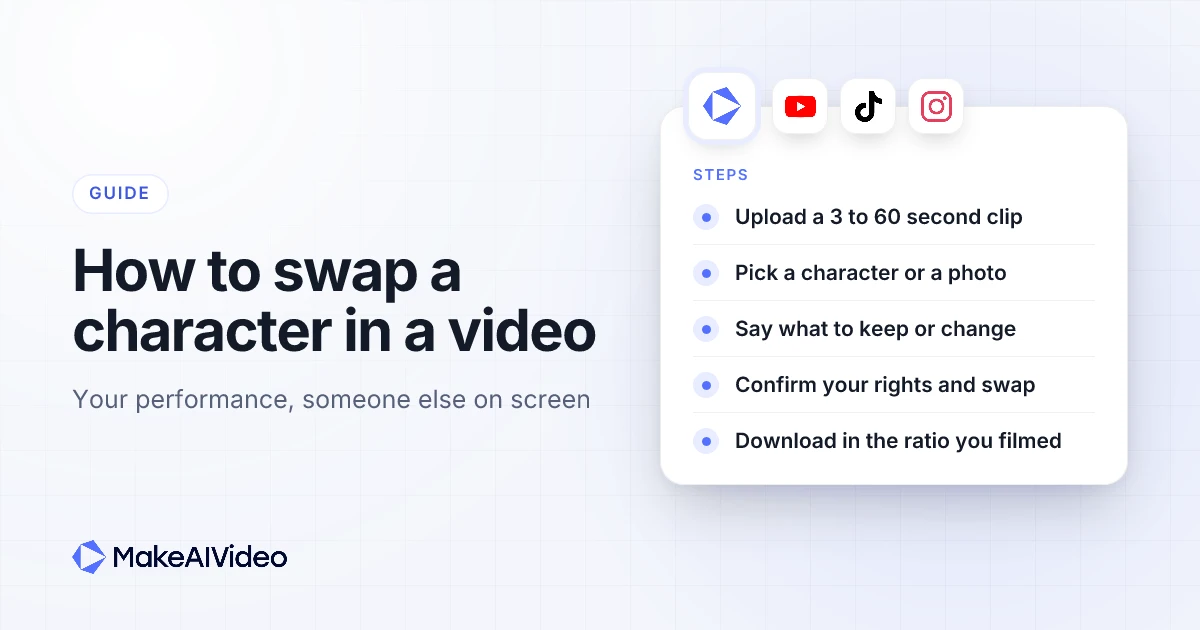
Here is how to swap a character in a video with AI: upload a short clip of one clearly visible person, choose the character who should replace them, add an optional note on what to keep, confirm you have the rights to the footage, and render. The person on screen is replaced by your character, and the movement, camera, scene and original audio stay as you filmed them. That is what an AI character swap video is: your performance, with someone else on screen. This guide walks through every step in MakeAIVideo's Character Swap tool, with the real clip limits, the credit cost per second, how to film a take that swaps cleanly, and the rules that apply when you post the result.
Written by Jamie Partridge, Founder of MakeAIVideo.
What is AI character swap?
AI character swap replaces the whole person in a video with a different character. Face, hair, body and clothes all become the character you pick, and every frame is regenerated. What stays is everything you actually performed: the motion, the gestures, the timing, the camera move, the room and the sound. The mouth follows the original words, so speech stays in sync.
People search for it under a lot of names: character swap AI, AI video character swap, AI character replacement video, replace person in video AI. They all describe the same job. You film once, and the same take comes back with a different person in it.
It is easy to confuse with two other things, so here is the difference in one table:
| Character swap | Face swap | AI talking avatar | |
|---|---|---|---|
| Starts from | A video you filmed | A video plus a face | A script you type |
| What changes | The whole person | Only the face | Nothing to change: the presenter is generated |
| Whose movement | Yours, as filmed | The original person's | The presenter's |
| Whose voice | Your original audio | The original audio | An AI voice reading your script |
| Best for | Skits, series, ads where your delivery matters | Narrow face edits | Videos where nobody films anything |
If you would rather not film at all, a presenter that reads your script is the better fit. To bring one still photo to life instead of swapping a person, animate a still photo. Character swap is for when your own performance is the point and you want someone else wearing it.
What do you need to swap a character in a video?
Two things: a clip and a character. Here is exactly what the tool accepts.
| Input | What works |
|---|---|
| Video file | MP4, MOV or WebM |
| Clip length | 3 to 60 seconds |
| File size | Up to 100 MB |
| Aspect ratio | Any. The output keeps the ratio you filmed in |
| People on screen | One clearly visible person |
| Footage rights | Your own footage, or footage you have permission to use |
| The character | A saved character, a preset, or a photo |
| Photo option | One clear, face-on photo, plus up to two more angles for a closer match |
| Optional note | Up to 400 characters on what to keep or change |
The output is 1080p on the short side at 30 frames per second, in the same aspect ratio as your upload. Vertical 9:16, landscape 16:9 and square 1:1 all work. Clips over 15 seconds are swapped in parts and joined back together, which is handled for you.
How to swap a character in a video with AI, step by step
The whole swap happens on one screen. The steps below use the labels you will see in the app.
Step 1: Upload your clip
Under Your video, upload the take: MP4, MOV or WebM, 3 to 60 seconds, up to 100 MB. Before you upload, the tool shows the credits per second, and once it has read the clip it shows the exact cost and how much of the clip your balance covers. If the clip is longer than 60 seconds or over your budget, use just its first part. If the part you want is in the middle, trim it in your phone's editor first.
Step 2: Choose who they should become
The next box asks Who should they become? You have two routes:
- A character. Pick one you have already saved, or one of the presets. A saved character is the way to keep the same face across a whole series.
- A photo. Upload a picture of the character you want on screen. One clear, face-on photo works. Add up to two more angles, such as a side view or a full-body shot, for a closer match.
If you want a brand-new character, Create your own opens the character wizard and brings your clip back when you are done.
Step 3: Say what to keep or change
The optional Anything to keep or change? note takes up to 400 characters. Use it for the details you care about. If you leave it blank, the character is swapped in as they are.
Step 4: Confirm your rights and swap
Tick the box that confirms you own the video or have permission to use it, then press Swap character. The estimated cost shows before you press it, so you see the price before anything runs.
Step 5: Wait a few minutes, then download
A swap takes a few minutes rather than seconds, because every frame is regenerated rather than filtered. Longer clips take longer. The finished video lands in your library at 1080p on the short side, with your original audio re-attached exactly as recorded.
Try it on a 3 second take first. A short test shows you how the character looks on your footage before you spend credits on the full clip. Every plan starts with a 7-day free trial. Start 7 day free trial →
How to film a clip that swaps cleanly
The swap keeps what you filmed, so the clip you upload decides most of the result. These are the habits that make a take swap well.
- One person, clearly visible. There is no control for choosing which of several people gets replaced, so frame the take around the one person you want to swap.
- A steady shot. Use a tripod or a steady handheld take. The camera move is kept as filmed, so a shaky clip comes back just as shaky, with a new person in it.
- Even light on the face. Soft, even light makes the expression and movement easier to read. Avoid filming straight into a window or with half the face in shadow.
- Stay in frame. Keep the person in shot from the first second to the last.
- Record the audio you want to keep. The original sound is re-attached unchanged, so the voice in the take is the voice in the finished video. A character swap will not re-voice it.
- Start short, then go long. Test the look on a 3 to 10 second take, then run the full clip once you like the character.
If you are filming for TikTok, Shorts or Reels, shoot vertical, because the output keeps the ratio you filmed. Our platform-by-platform guide covers the hook, length and format choices for each platform.
Character replacement notes you can copy
The note is where you protect the details that make a shot work, or change the ones you want different. Keep it short and concrete, one or two instructions at a time. These are written for the Anything to keep or change? box; swap the bracketed parts for your own.
"Keep the glasses, give them a denim jacket."
"Keep the watch on the left wrist and the mug in their hand."
"Keep the [COLOUR] hoodie and the headphones around the neck."
"Dress them in a navy suit and white shirt, keep the lanyard."
"Keep the apron and the flour on the hands."
"Give them short grey hair and a [COLOUR] cardigan, keep the reading glasses."
Two habits help. First, name objects the person is touching, such as a mug, a product or a microphone, so they survive the swap. Second, change one or two things per note rather than ten. If the first render is close but not right, adjust the note and run a short test again.
How to create a reusable character for a series
A saved character is what makes a series feel like a series: the same face on every clip, with your performance underneath. The Create Character wizard has four steps.
- Describe your character. Write who they are: age, look, clothes, setting. Add reference images (up to five) if you want the face locked to a particular design.
- Pick your portrait. Choose the portrait that matches what you had in mind from the ones generated for you. That portrait is the face your swaps will use.
- Pick a voice. The wizard asks for a voice so the character works across the app. A character swap keeps your original audio, so this choice does not change a swap.
- Name and save. The character then sits in the Character Swap picker for every new clip.
The same character can also front other formats. If you are building a recurring persona, the AI influencer generator and our walkthrough on how to create an AI influencer cover keeping one face consistent across posts.
What does an AI character swap video cost?
A character swap costs about 65 credits for 10 seconds and 115 for 30 seconds, all in. A swap with a note costs more, because it runs on an engine that follows the note. The app shows the exact cost before you swap, so treat these as close estimates.
| Clip length | Credits (about) | Notes |
|---|---|---|
| 10 seconds | 65 | A quick test of a new character |
| 30 seconds | 115 | A typical short-form video |
Character Swap comes with every plan rather than being kept for a higher tier. Monthly credits on each plan:
| Plan | Price | Credits a month |
|---|---|---|
| Lite | $9/mo | 350 |
| Starter | $19/mo | 800 |
| Creator | $49/mo | 2,500 |
| Pro | from $99/mo | 6,000 to 50,000 |
Plan credits reset monthly and don't roll over. Run out? Add credits any time, from $25. Credits you buy never expire and stack on top. The full breakdown, including yearly billing, is on the pricing page.
Is there a free AI character swap video tool?
MakeAIVideo is a paid product, and every plan starts with a 7-day free trial, so you can test character swap on your own footage before the plan begins. Character Swap is included on every plan, including the cheapest.
The cheapest way to judge it is one short test: a 3 second swap at about 48 credits. If the character looks right on that, run the full take. If not, change the note or the reference photo and test again before you commit a full minute.
Swap the person, keep the performance. Upload a take, pick a character or a photo, and the same performance comes back with someone else on screen, in the ratio you filmed. Start 7 day free trial →
How to use character swap responsibly
Character swap is built for putting yourself, or someone who has agreed, into a character. It is not for putting a real person into a clip without their consent, and it is not for impersonation. Before every render you tick a box that reads:
"I own this video or have permission to use it, and I have the right to use the likeness I'm swapping in. I won't use this to impersonate or deceive anyone."
In plain terms:
- Use footage you own or have permission to use. Your own takes are the easy case.
- Use characters you have the right to use. A character you designed, a preset, or a photo of someone who has said yes.
- Don't put real people into clips without consent, and never use a swap to make someone appear to say or do something they did not. Doing so breaches our terms of service.
That line matches how the EU AI Act describes the problem. It defines a deep fake as AI-generated or manipulated content that resembles existing persons and would falsely appear to a person to be authentic or truthful, and requires people who publish one to disclose it.
Do you need to label a character swap video?
If it looks realistic, plan on labelling it.
- YouTube requires creators to disclose realistic altered or synthetic content, including content that makes a real person appear to say or do something they didn't. Its own announcement lists editing to replace the face of one individual with another's as an example that needs a label, while clearly unrealistic or animated content does not. Search Engine Journal's write-up of the rollout lists the same face-replacement example.
- TikTok requires people to label AI-generated content that contains realistic images, audio or video. TechCrunch's report on the rollout notes that the policy lets TikTok take down realistic AI images that aren't disclosed.
- Instagram and Facebook: Meta requires people to use its disclosure and label tool when they post photorealistic video that was digitally created or altered, and says it may apply penalties if they don't.
A swap into an obviously fictional character is the easy case. The closer a swap looks to a real, identifiable person, the more these rules matter. How we handle AI labelling covers what that means when you publish, and our deeper guide to labelling AI characters covers a recurring persona.
What character swap can't do
Knowing the limits saves you a wasted render.
- It swaps one person. There is no control for picking which of several people gets replaced. Frame the take around one person.
- It doesn't change the audio. Your original track comes back unchanged. If you want a different voice, record it that way, or use a script-led AI presenter instead.
- It doesn't fix the footage. Shaky camera, poor light or a subject walking out of frame all carry through to the result.
- Clips run 3 to 60 seconds. Longer clips can be swapped in their first part only.
- The output keeps your ratio. One aspect ratio per render: the one you filmed in.
- It isn't instant. Expect a few minutes per clip, more for longer ones.
What can you make with AI character swap?
One performance, a different person on screen. These are the formats it fits best.
- Skits with a cast of one. Play every part yourself, then swap each take into a different character. Your timing carries the joke; the character carries the look.
- Ads with one brand character. Film the ad read yourself and swap in the same saved character every time, so each ad has the same face. Run the same take with a second character to compare presenters. There are more creator-style ad formats to try.
- Localised presenters. Run the same footage with presenters suited to different audiences without a second shoot.
- Storytelling channels. Tell the story on camera yourself and publish it as a narrator character who suits the channel. The pauses and voice stay yours.
- A host for a faceless channel. Some people are good on camera and would rather not be recognisable on it. Character swap keeps your delivery and changes the face, which suits a faceless YouTube channel that still wants a host. Our guide to making faceless videos covers the other routes.
- A recurring character who is actually you. Save the character once and every episode has the same face with your timing underneath.
Film once, become someone else. Upload a clip of up to 60 seconds, choose a character from your library or from a few photos, and swap the person in your own clip while the motion and audio stay as filmed. Start 7 day free trial →
Frequently asked questions
How do I swap a character in a video with AI?
Upload a 3 to 60 second clip, choose a saved character, a preset or a photo, add an optional note, confirm your rights and press Swap character. The person is replaced and the motion, camera, scene and audio stay as filmed.
Is AI character swap the same as a face swap?
No. A face swap replaces only the face and leaves the rest of the person alone. Character swap replaces the whole person with the character you pick, and it is built for swapping yourself or footage you have the rights to, not for putting a real person's face on someone else.
Is there a free AI character swap video tool?
MakeAIVideo is paid, but every plan starts with a 7-day free trial. A 3 second test swap is the cheapest check at about 48 credits, and Character Swap is included on every plan.
How long can the video be?
Between 3 and 60 seconds, up to 100 MB, as MP4, MOV or WebM. Clips over 15 seconds are swapped in parts and joined, and a longer clip can be swapped in its first part only.
Does the audio change when you swap a character?
No. Your original audio is re-attached to the finished video exactly as recorded. Nothing is re-voiced, and the mouth follows the original speech so it stays in sync.
Can I swap more than one person in a clip?
Not reliably. Character swap is built for one clearly visible person, and there is no control for choosing which of several people gets replaced, so frame each take around one person.
Do I have to label a character swap video when I post it?
If it looks realistic, yes, plan on it. YouTube, TikTok and Meta all require a label on realistic AI-altered video, and YouTube names replacing one person's face with another's as an example. Clearly fictional or animated characters are the easier case.

Written by Jamie Partridge
Founder at MakeAIVideo. Writing about AI video generation, scripting, scenes, and shipping content faster.